

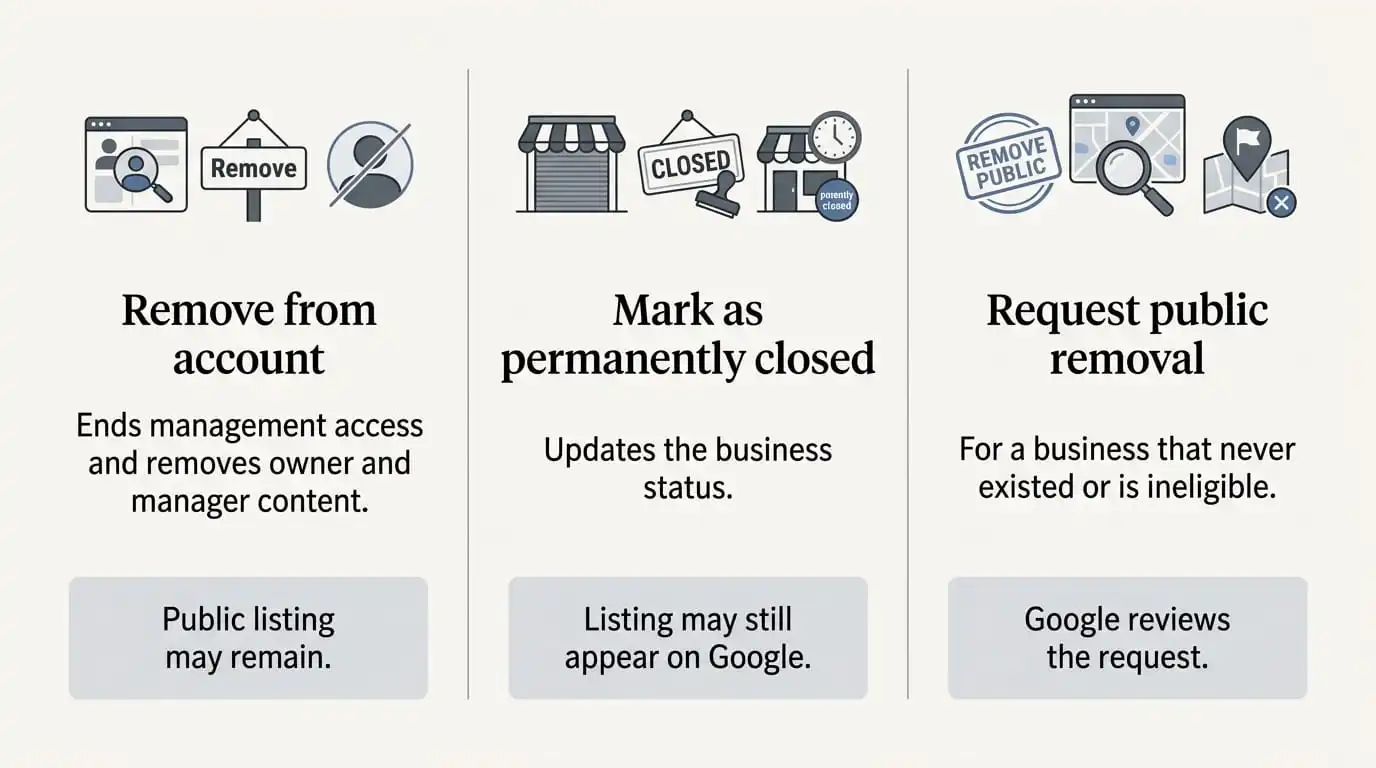
To remove a Google Business Profile, sign in as the primary owner, open your profile on Google Search or Maps, select More → Business Profile settings → Remove Business Profile, then choose Remove profile content and managers. This ends your management access and permanently deletes the posts, photos, videos and review replies added by owners and managers. It does not guarantee that the business disappears from Google Search and Maps.
That gap between removing a profile from your account and removing a place from Google is the source of most confusion on this topic. Before you click anything, it helps to know which outcome you actually want.
People use “delete” to describe three different actions, and Google handles each one separately:
Account removal ends your access to the profile and permanently deletes content added by owners and managers. The public listing may remain.
Public listing removal asks Google to remove a place from Search and Maps. This is intended for places that do not exist or are not eligible, and Google makes the final decision.
Duplicate merging combines two public listings for the same business at the same location, where eligible, into one.
Use this table to choose the right action for your situation:
| Your situation | Recommended action |
|---|---|
| You no longer want to manage the profile, but the business continues | Remove yourself, or transfer primary ownership first if you are the primary owner. |
| You are the primary owner and want to remove owner content and all managers | Use the account removal steps below. |
| The business has closed permanently | Mark it as permanently closed. Remove profile content and managers only if you also want to give up management access. |
| The business has moved | Update the address on the existing profile instead of deleting it. |
| A listing is fake, nonexistent or ineligible | Request public removal through Suggest an edit on Google Maps. |
| You have two profiles for the same business | Identify the correct profile before removing a duplicate or requesting a merge. |
Google’s own guide to removing a Business Profile from your Google Account states that only primary owners can remove profile content and managers. Managers cannot remove a profile at all.
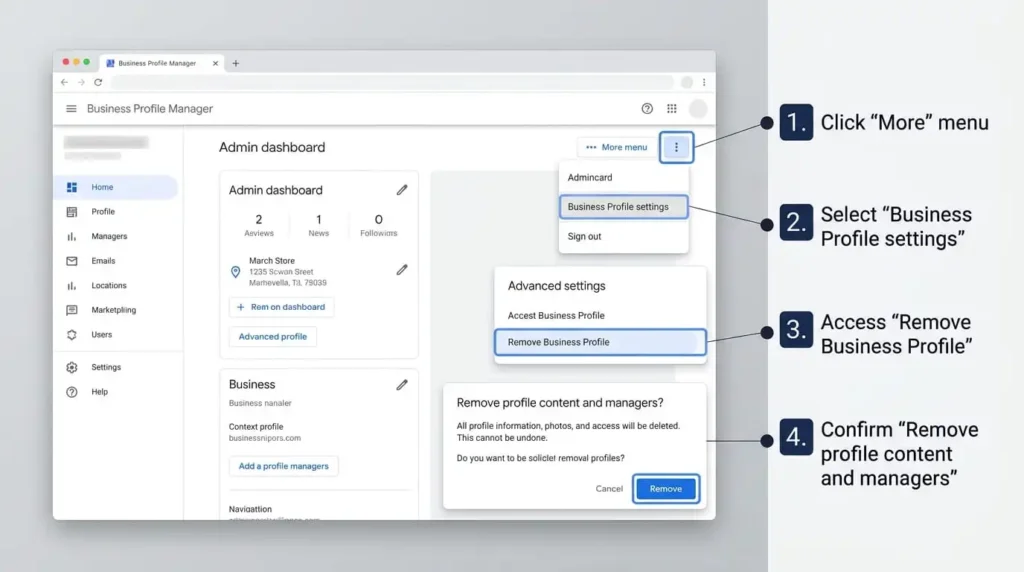
Save anything you want to keep before you start. Removal is permanent, and deleted content cannot be recovered.
If you manage multiple locations, open the Business Profile Manager and sign in to the Google Account associated with all of them. Select the profiles, then choose Actions → Remove businesses → Remove. If you get an error, Google says to remove the content and managers for each profile separately.
Check your selection before confirming. Removal affects every owner and manager attached to each profile you select.
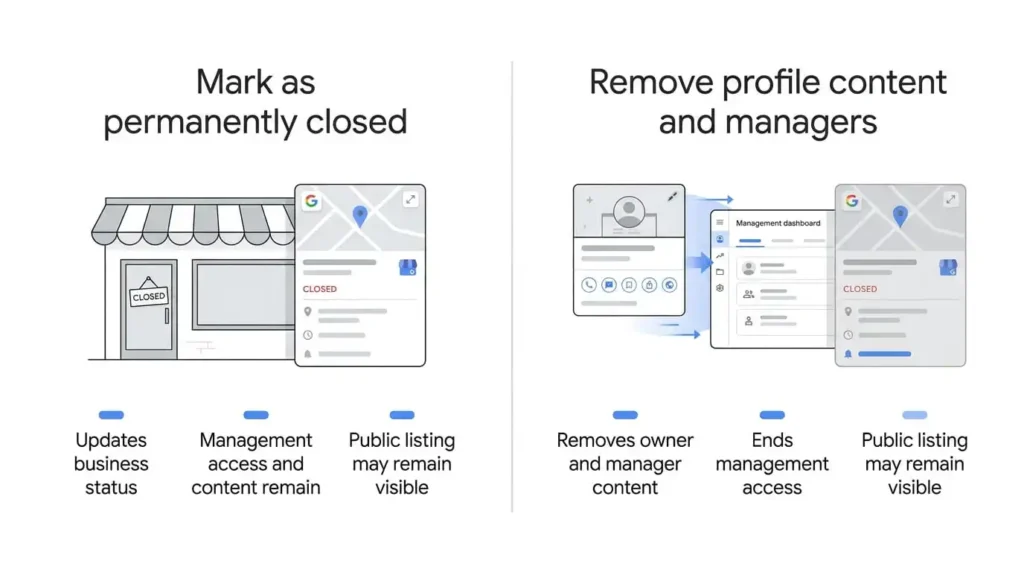
These are related but not identical, and the difference matters.
Marking a business permanently closed on its own is a status change. Go to your profile, select Edit profile → Hours, edit the hours, choose Permanently closed, then Save. You keep your access and your content. Google notes that the profile may still appear on Search and Maps, clearly showing the business as closed. For several locations, the Business Profile Manager has a Mark as permanently closed action.
The closure toggle inside the removal flow does two things at once: it removes content and managers, and it marks the business as closed. Google says a business marked closed will not vanish from Maps right away. It slowly disappears from search results and is then removed completely.
So which should you use?
Google’s guide gives one set of directions rather than separate phone steps, so button names in the Google Maps app may differ slightly from the desktop labels. The path is the same: open your profile while signed in as the primary owner, select More, then Business Profile settings, then Remove Business Profile, and follow the confirmation screens.
If you cannot find the option on your phone, try again in a browser on your phone or computer. Removing a Business Profile is also not the same as deleting your personal Google Account. Your Gmail, Drive and other Google services are untouched.
Removal ends your access, but the public side often stays put.
What goes away:
What usually stays:
To manage the business again, you must verify the profile again, and the deleted content does not return.
This catches many owners out. If your real goal was to get rid of an unfair review, removal will not do it. The review stays visible while your replies disappear, so you lose your side of the story. If the underlying problem is how reviews are handled, Google Business Profile review management is a better place to start than deletion.
Google publishes no fixed timeline, so be wary of any guide that quotes an exact number. The steps themselves take a few minutes. What happens on the public side depends on Google’s own review, and a listing marked closed fades gradually rather than disappearing on a set date.
If customers need to know the truth right now, mark the business closed or update its details. Do not wait for a listing to vanish.
If the business continues and you simply want out, do not use Remove profile content and managers. That option deletes content and managers for everyone.
Go to Business Profile settings → People and access, select yourself, then choose Stop managing and Confirm. Other owners, managers and the profile’s content are untouched, and your past replies and posts stay on the profile.
If you are the primary owner, Google will not let you leave until you transfer primary ownership to someone else. The profile needs at least one other owner or manager to receive it. This is the right route after selling a business, handing a profile to a new team or ending a relationship with an agency.
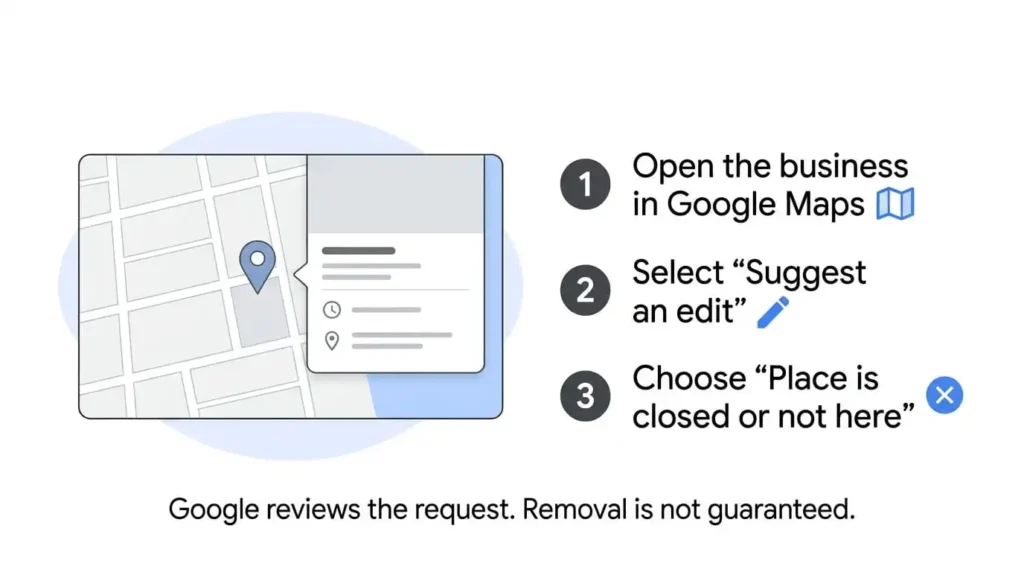
Google’s guide to requesting removal of a Business Profile from Search and Maps covers listings that never existed or are not eligible to be on Google. You can submit a request even if you do not own the profile.
You may receive a status email with further questions. If Google approves the request, the business is removed from Search and Maps.
Be realistic about the outcome. A real, operating business that simply wants out is unlikely to qualify. Choose an honest reason, because an inaccurate one weakens your request. For fraudulent information tied to a business name, phone number or website, Google’s help page also points to a business redressal complaint form.
Google allows only one Business Profile per business. A profile considered a duplicate will not show on Search or Maps. The right fix depends on where the duplicate sits.
A duplicate you created in your own account. If you made it by mistake, you can remove it without affecting your verified listing. Removal deletes all content and linked managers, so make sure you pick the correct profile.
Two public profiles for the same business on Maps. To request a merge, report a suggestion on Google Maps. All merge requests are reviewed. When profiles merge, their reviews are combined, but replies to reviews may be lost.
A business that moved. Do not create a new profile for the new location. Update the address on the existing one.
Rarely, and not in the way people expect. After you remove a profile from your account, the old listing often remains on Google with its reviews. A new profile at the same address could then be flagged as a duplicate.
Ask why you want a fresh start:
Be cautious with any service that promises guaranteed removal of a listing and its reviews. Google makes that decision, not the service.
When the option is missing, the cause is usually permissions. Check these in order:
If the problem is that a former employee or agency still holds primary ownership, resolve that first. Google Business Profile ownership issue support is built for exactly this kind of access conflict. If your profile is suspended rather than something you chose to remove, Google Business Profile reinstatement support covers that separate problem. If you are not sure which situation applies to you, you can contact Yana Digital Solution.
If you decide to keep your profile after weighing all this, a strong, accurate listing is usually the better outcome. Google Business Profile optimization is the logical next step.
Not necessarily. Account removal ends your management access and deletes owner content, but the business can still appear on Search and Maps. To request public removal of an ineligible or nonexistent place, use Suggest an edit on Google Maps.
Customer reviews remain visible. Your replies to them are permanently deleted along with your posts, photos and videos.
No. Managers cannot remove profiles, and Google’s removal guide limits the action to primary owners. A manager who no longer wants access can remove themselves.
Open People and access, select yourself, then choose Stop managing and Confirm. Primary owners must transfer ownership first. This does not delete the profile or affect other users.
You can usually reach the same settings through the Google Maps app. If the option does not appear, use a browser. Deleting a Business Profile does not delete your personal Google Account.
Often, marking it permanently closed is enough, and it keeps your access and content. Choose removal only if you want to give up control for good.
Google gives no timeframe, and the listing may remain. A closed listing fades gradually, and requests to remove an ineligible place depend on Google’s review.
Yes, if the duplicate is in your own account, as long as you remove the correct one. For two public profiles for one business, request a merge through Google Maps instead.
Deleted owner content cannot be recovered. To manage the business again, you must verify the profile again.

Comments are closed