

Google Business Profile video verification asks you to record one continuous, unedited video on your phone that shows three things: where your business is, that it really exists, and that you are authorized to manage it. The recording must be at least 30 seconds long, captured live through your Business Profile, and free of sensitive information and other people’s faces. Google then reviews it, which can take up to five business days, and either verifies the profile or explains what was missing.
Most failures come from a video that looks fine to the owner but leaves one of the three proofs out. This guide covers what to show, how to record it, how to adapt it for storefront, service area and hybrid businesses, and how to handle a rejection or a failed upload. It follows Google’s video verification help page, checked in November 2026, and it labels practitioner observations separately so you can tell Google’s requirements from field experience.
| Business type | What the video must show |
|---|---|
| Storefront | Surrounding location, permanent signage matching your profile name, and access to areas only staff can use |
| Service area | Street signs or landmarks near your address, your tools, equipment or branded assets, and proof of management such as unlocking a branded vehicle or showing matching business documents |
| Hybrid | Everything a storefront shows, because Google lists the same requirements for both |
Google Business Profile video verification is one of several ways Google confirms that a business is real and that the person claiming it can manage it. Instead of waiting for a postcard or entering a code, you show the business on camera, and a reviewer checks the footage against your profile. Google recommends this option whenever your business is eligible for it.
You may see it called Google Business video verification, GBP video verification or business profile verification video. These names describe the same recorded process, which is different from a live video call (explained below). The older name, Google My Business, was replaced by Google Business Profile in 2021, but it still appears in older forum threads.
Google’s stated purpose is to confirm that you manage or represent the business. Local SEOs also widely see it as a response to fake listings and mailbox addresses, since a live walkthrough is harder to fake than a postcard. That second point is a practitioner view, not a Google statement.
Three different features use the word “video,” and mixing them up causes avoidable mistakes.
| Recorded video verification | Live video call verification | Ordinary profile video | |
|---|---|---|---|
| Purpose | Verifies your business | Verifies your business | Shows your business to customers |
| How it works | You record on your phone inside the Business Profile flow, upload it, and Google reviews it later | You start a text chat with a support representative, then join a video call and show your business | You upload it to your profile’s photos and videos |
| Key rules | Live, unedited, complete, at least 30 seconds | You must be at your business, and calls are only available during your location’s opening hours | Up to 30 seconds, up to 75 MB, 720p or higher |
| Availability | Offered when Google decides your business is eligible | May not be available for all businesses | Appears on Google only after your profile is verified |
Recorded video verification is the subject of this guide. You choose Business video under Get verified, record without help, and wait for a review of up to five business days.
Live video call verification is a separate option listed in Google’s verification help. Google says to be at your business and ready to show your location (outside signs, nearby businesses or a street sign), your business or equipment, and proof that you manage it, such as access to employee only areas, a cash register, a kitchen, a storage room or nonsensitive business documents. You can also use your keys to open your facility. To start, select Get verified, then Live video call, then Next, choose a language and select Start call. That opens a text chat, and a support representative helps you join the video call when ready. If the option does not appear, you cannot select it yourself.
Ordinary profile videos are marketing content. They have their own limits (30 seconds at most, 75 MB, 720p or higher), they are reviewed against Google’s content policies, and they do not verify anything. Do not apply those limits to a verification recording, and do not try to submit a profile video as verification.
A verification recording is also handled separately. You can delete it at any time under Business Profile settings, Advanced settings, Video uploads, Delete videos, and Google deletes it later if you do not.
Video verification works for storefront businesses, service area businesses and hybrid businesses. Google decides automatically which verification methods you see, based on factors such as business type, public information, region and opening hours, and you cannot change that selection. In some cases you may need more than one method. If several options are listed on your profile, you can try another one.
Here is how the three types are defined:
Online only businesses are not eligible. Google does not allow a Business Profile for a business with no in person service, including ecommerce shops with only a virtual storefront. A service area business is different: it can qualify without a customer facing storefront, as long as it genuinely offers in person services.
One practical point trips people up. If you do not serve customers at your address, do not list it as a storefront. Set the profile up as a service area business and hide the address. A storefront listing without permanent signage is unlikely to pass.
Google’s published rules are short. Your video must be:
It must not show sensitive information such as bank account, tax or ID numbers, private information about you or others, or other people’s faces.
Google sets a 30 second minimum and publishes no maximum length, file size or resolution for verification recordings. In practitioner experience, most of what you need fits in 60 to 120 seconds, and longer files tend to upload less reliably. A complicated location, such as a large office building, may need a longer take, so plan the route to avoid wasted footage.
Be wary of any article that presents an exact maximum as an official verification rule. The 75 MB and 720p figures you may see belong to ordinary profile videos, not to verification recordings.
Google does not say that narration is required or how reviewers use audio, although the app may ask for microphone access. Some local SEOs report that reviewers may not hear audio at all, which is an unverified practitioner observation. The safe approach is to let the camera do the proving: point it at the sign, the lock, the tool, the document. Because Google’s privacy rule covers private information about you or others, keep phone calls and customer conversations out of earshot, and keep any narration brief.
The recording itself takes minutes. The planning is what decides whether you pass. Work through these steps in order.
Decide your exact path before you open the camera: street, signage, entrance, workspace, proof of access. Walk it once without recording and time it. Have your keys ready so you are not fumbling during the take, and check what is visible from each spot, since a crowded street means other people’s faces.
Go to your Business Profile on your phone, signed in with the Google account that manages it. If you start on a computer, some guides report that Google shows a QR code to continue on your phone. Tap Get verified. You may be asked to enter a phone number and tap Next first.
Tap Business video, then Next, and read the requirements. Google may ask for access to your location, camera and microphone. Follow the onscreen instructions to allow them.
Tap Next, then Start recording, and follow your rehearsed route without stopping. As practical advice, hold the camera steady and stay on each key item for two or three seconds, long enough for a reviewer to read a sign or a document. Tap the stop button when you have covered all three proofs.
Watch the recording back before sending it. If a sign was blurry or you missed your proof of management, tap Try again. When it is right, tap Upload video.
Google notes that uploads sometimes fail on the first attempt and advises trying again. Some local SEO teams also suggest lowering the phone’s camera resolution (720p at 30 fps is the lowest setting on many devices) to create smaller files. That is practitioner advice, not a Google requirement.
Google evaluates every video against three questions. All three need a clear answer.
Management is the proof most owners miss. A sign and a counter show that the business exists. They do not show that you are allowed to speak for it.
Start outside. Show the street sign, the building number and the businesses next door, so a reviewer can match the scene against Maps and Street View. Then film your permanent signage, with the business name clearly visible and matching your profile exactly.
Walk inside and show the space doing what it does: chairs in a salon, shelves in a shop, a kitchen in a restaurant. Finish with something only staff can do, such as unlocking the door, opening the register, using the point of sale system, or entering the kitchen or storage room.
Google asks for the business name on a permanent fixture, such as a signboard, wall or window, so temporary vinyl banners and paper signs put you at risk. If you have no permanent signage, you may not qualify as a storefront.
A service area business has no storefront sign, so your vehicle, equipment and branded items do that job. Begin outside your address with the street sign, the house or building number, or visible neighborhood landmarks. Avoid filming empty land or anywhere without clear identifiers.
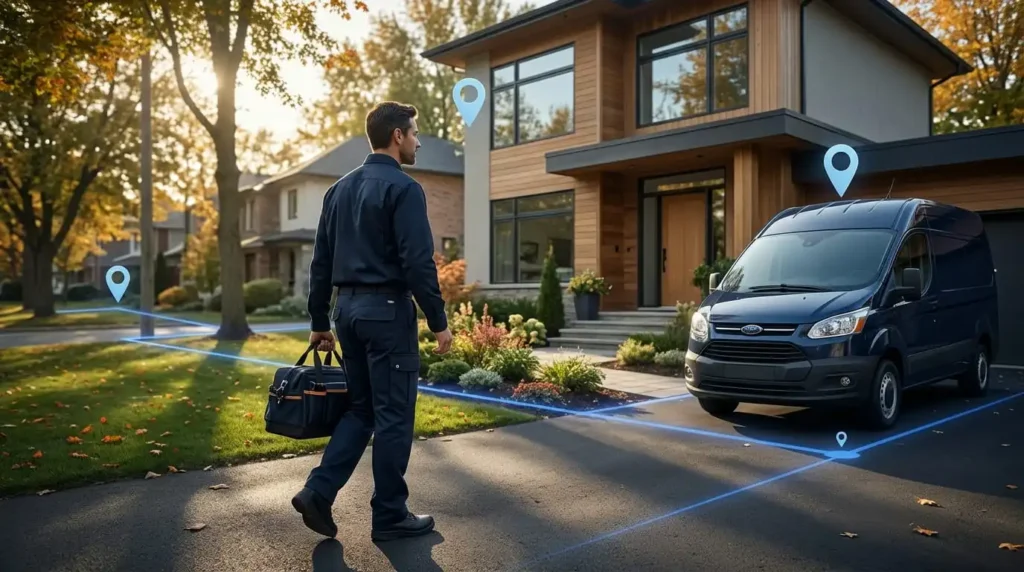
Then build the case that a real company operates from here. Google names these examples:
Show something that links you personally to the business, not just the business to the address. Unlocking a branded vehicle or performing a service on camera does this well. Google’s help page does not list logging into business software such as a CRM or accounting package as proof. Some owners include it anyway, but treat it as supporting detail only: keep customer data, account numbers and passwords off screen, and do not let it replace the items Google names.
Example: a plumber working from home. Start at the curb, showing the street name and house number. Pan to the branded van in the driveway, unlock it and show the pipe tools and fittings. Walk through the front door or garage to the home office and show the business license and an invoice with the company name, keeping sensitive details out of frame. The whole take runs about 90 seconds.
Example: a landscaper. The truck, trailer and mowing equipment do most of the work. Film the property entrance and street number first, unlock the truck or equipment shed, and show a document linking the business name to you.
Treat a hybrid business as a storefront for verification. Show the surrounding location, permanent signage matching your profile name, and access only staff have. Your delivery or on site service side is useful context, but it does not replace storefront evidence.
A home address can work for a service area business. Google’s help page says that if you run a service area business from home, you can record landmarks and signs in your immediate neighborhood to verify the address. Google’s guidelines also say to clear the address from your profile if you do not serve customers there.
Beyond the neighborhood shots, show the business itself: the workspace, equipment, branded vehicle and a matching document, as in the plumber example. In practitioner experience, a video of only a front door tends to fail, because it shows that a house exists rather than that a business operates there.
Two cautions apply. Home interiors often contain family members, mail and personal photos, so check every room and film when no one else will be in frame. And no approach guarantees approval, because Google makes the final decision.
Google’s business representation guidelines are specific about shared and rented locations:
If your coworking or shared office qualifies, film the building and street, then the signage showing your business name, then unlock your own office or use your own access and show your workspace. If the space does not meet Google’s conditions, a stronger video will not fix that. In that case, consider whether you are really a service area business operating from another genuine address, and set the profile up accordingly. None of this guarantees acceptance, since Google reviews each case.
Run through this before you tap record.
Before filming
If you are unsure whether your profile details match your real world signage, a Google Business Profile audit can catch mismatches before you record.
While filming
After filming
That last point needs context. Google’s explicit warning against editing those details applies to postcard verification, where a change makes the code useless. Google also says that changes to business information may require you to verify again. For video, Google publishes no specific rule, but your footage must match the profile, so a mid review change could create a mismatch.
A rejection means Google reviewed your video and found it did not meet all the requirements. Google explains the reasons in your profile under Review issues. Its own examples include a business name not visible on the storefront, no nearby area shown, and missing proof of authorization to operate the business. In practice, rejections tend to come from these issues:
A subtle trap: readable documents that match your business name help you, but identification documents with ID numbers hurt you. Show a business permit or invoice, and keep your driver’s license out of frame.
Rejected videos and failed uploads are different problems. A rejection is a content problem, and a failed upload is a technical one. Fix them differently.
| Issue | How to fix it |
|---|---|
| Business name not visible | Film permanent signage that matches the profile name exactly |
| No nearby area shown | Start with street signs, building numbers and neighbors |
| Existence not established | Show your premises, tools, equipment or branded vehicle in use |
| Management not proven | Unlock a door or vehicle, use staff only systems or show matching documents |
| Privacy issue | Record again somewhere quiet, keeping faces and sensitive numbers out of frame |
Do not simply refilm the same route and hope. If the video has failed more than once, look hard at whether you are really showing management, which is the proof owners most often underestimate. If it keeps failing, a specialist can review your footage and profile before you try again. Our Google Business Profile verification service is one option.
Google notes that videos sometimes fail to upload on the first try and advises uploading again. If it keeps failing, work through these in order:
Google says the review can take up to five business days, and on rare occasions longer. Many practitioners see results sooner, and some rejections arrive within a day or two. When the review ends, Google tells you the result: a confirmation email if you are verified, or a Review issues notification if the video was not accepted.
If the video passes but your profile is not yet live, Google may ask you to verify with another method. Google notes that some businesses need more than one method, so this does not mean the video failed. You may also be asked to verify again later, for example after business details are updated.
A suspended profile is a separate problem from a pending or rejected video, and it has its own appeal process. Our guide to Google Business Profile reinstatement covers that situation. Once you are verified, completing the rest of your profile is the next step, and Google Business Profile optimization explains how.
Usually not. Google determines the available methods automatically from your business type, public information, region and opening hours. Phone, text, email, live video call, postcard and video recording options all exist, but you only see the ones Google has decided apply. In some cases Google verifies instantly, such as when you verify your website through Search Console or use bulk verification for multiple locations.
If video is your only option, the best response is to prepare properly rather than look for a way around it. Owners with documents, such as a business permit or registration certificate, often wish they could simply upload them. The video route is where those documents help: Google names permits, invoices and utility bills as examples to show on camera, so they belong in the video as part of your proof of management.
It is a verification method in which you record a live, continuous video of your business on your phone and upload it through your profile. Google uses it to confirm your location, that the business exists, and that you manage it. It differs from a live video call with a support representative.
Open your profile on your phone, tap Get verified, choose Business video, record, review the footage and tap Upload video. The step by step section above explains how to plan the route.
The recording must be live, unedited, unique and complete with no breaks, at least 30 seconds long, and recorded and uploaded from a mobile device. It must not show sensitive information, private details or other people’s faces.
Google requires at least 30 seconds and publishes no maximum. Practitioners find 60 to 120 seconds practical.
Show your location, proof that the business exists, and proof that you manage it. The sections by business type above explain what each looks like for yours.
No. Recorded video verification is a video you capture and upload for later review. A live video call connects you with a support representative in real time, only during your location’s opening hours, and may not be available for all businesses.
No. Prerecorded and offline videos are not allowed, and ordinary profile videos (up to 30 seconds) are a different feature that does not verify your business.
The video most likely lacked one of the three proofs. Tap Review issues, read the reasons, and record a new complete video that includes everything from the first attempt plus the missing evidence. Google may also ask you to upload again for the same reason.
Google says review can take up to five business days, occasionally longer. Further verification steps can follow.
Yes, if it genuinely offers in person services. Show street signs or landmarks near your address, tools or a branded vehicle, and proof of management such as unlocking the vehicle or showing a document with your business name. Hide your address on the profile. Online only businesses are not eligible.
Yes, as a service area business. Show neighborhood signs and landmarks, your workspace and equipment, and a matching document. A video of only the front door is likely too weak, and Google does not guarantee approval.
Only if your office has clear signage, receives customers during business hours, and is staffed during those hours by your own team. Virtual offices and mailing addresses where you do not operate are not eligible.
Permanent signage with the exact profile name, the surrounding street, the interior in operation, and something only staff can access, such as the register or a storage room. Delivery or on site work is useful context but does not replace this.
Google says to upload again, since first attempts sometimes fail. If it still fails, check your connection and account, then see the troubleshooting steps above for practitioner workarounds.
Usually not. Google selects the methods automatically. If your profile lists several options, you can try another one.

Comments are closed